

Table of Contents
Events
The Events page is where you investigate something your system noticed. Cameras, alarm panels, access control and TetherBox health changes create events automatically. Start with the newest activity, narrow the list, then open, flag, share or download the evidence you need.
Find the Right Events
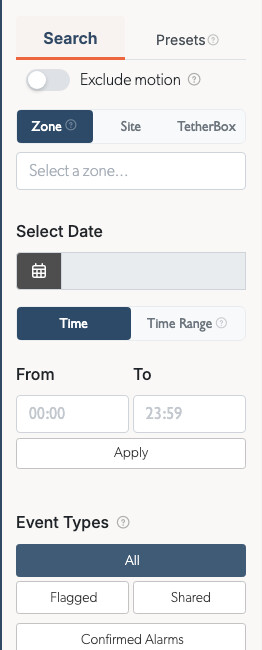
Select Find footage to describe what you want in your own words, preview the selected filters and apply the search. See Natural Language Search for examples, date overrides and dictation.
- Open Events from the sidebar.
- Use the filters to choose a site, zone, date, time of day, event type or state.
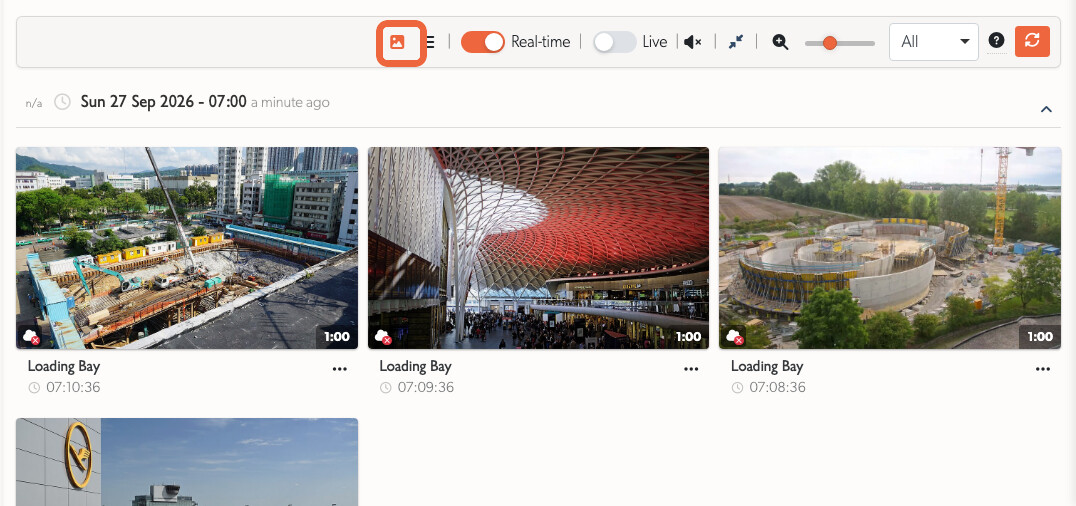
- Use Thumbnail view to scan images quickly, or List view when you need the site, camera, time and event details side by side.
The filters stay with the page as you work. Set them before a bulk action: flagging, sharing and downloading apply only to the events you select.
Reuse a Saved Search
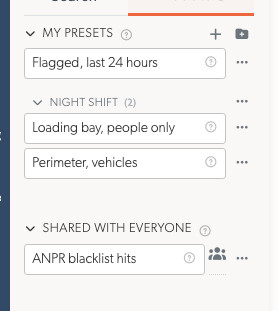
Open Presets in the filter sidebar to save a useful search and bring it back later. Your own presets can sit at the top level or inside groups. A shared preset is available to everyone on the Timeline; private ones remain yours.
Be Notified When Someone Matching a Search Appears
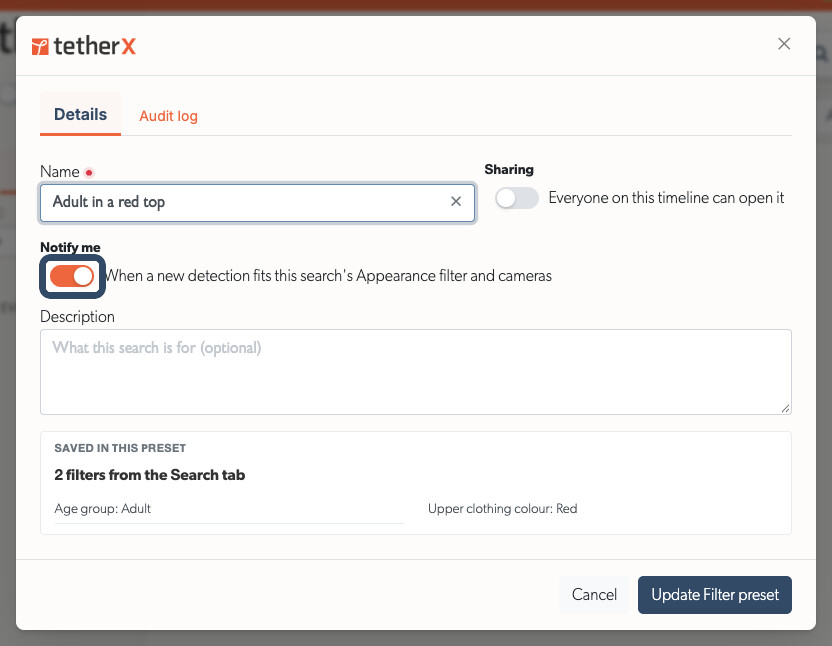
A saved search that uses the Appearance filter, such as an adult in a red hat or a white van, can notify you whenever a new detection matches it:
- Set the Appearance filter, and the site or zones if you want to limit it, then save the search as a preset.
- Edit the preset and switch on Notify me.
The notification arrives by the Delivery Method in your profile's notification settings: a push notification, an email, or both. A push notification names the search, the camera, the site and what was seen, and tapping it opens the event's video at the moment of the match. In the TetherX app it plays the sound chosen for other events.
- You receive one notification per search per event, and only for events you can open. If a camera's notification settings have already told you about the event, the search does not notify you about it again.
- Matches within 15 seconds of each other, such as one person passing several cameras or one detection fitting two searches, arrive together as one notification that says how many more matches it holds.
- The rule uses the search's Appearance filter and its site or zones. Its date, time and event type filters are for listing past events and do not limit the notifications.
- Notify me is offered on your own saved searches and notifies only you, including on a search you share.
Detections from TetherX AI and from a connected Lumana system both count. See Lumana Integration.
Choose a View
- Thumbnail view is best for recognising the moment or camera you need.
- List view is best for reviewing a queue or comparing event details. Control room operators normally use this view.
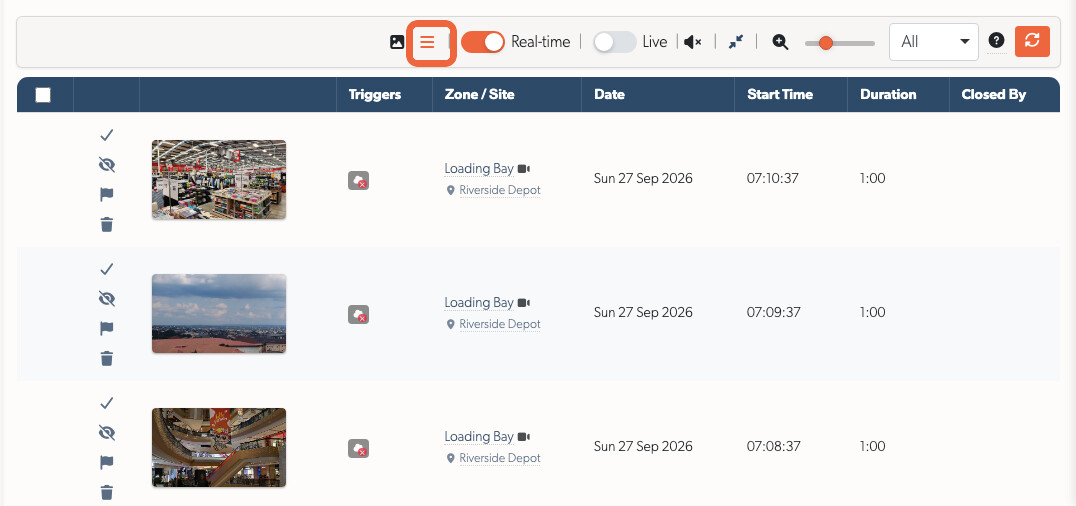
The Events View Menu controls the view, real-time updates, live preview, sound and thumbnail size. The state picker shows All, Open, Pending, Hidden or Closed events.
Bulk Selection
- In Thumbnail view, click and drag to draw a selection box around the event thumbnails you want.
- In List view, click the tick box at the top of the column to select all events currently shown. Use the tick boxes beside individual events to adjust the selection.
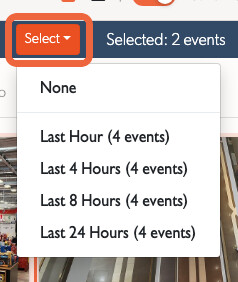
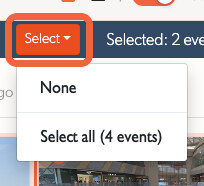
- After selecting at least one event, click Select in the action bar to extend the selection:
- Default view: Choose a time period. The menu shows how many events each period contains.
- Specific date selected: Choose Select all to select every matching event from that day, including events beyond those currently shown.
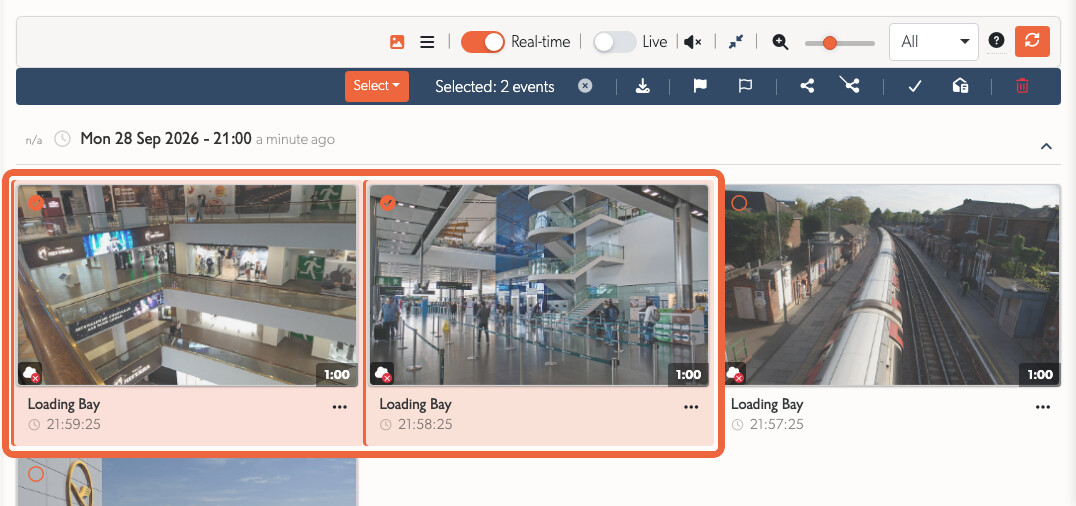
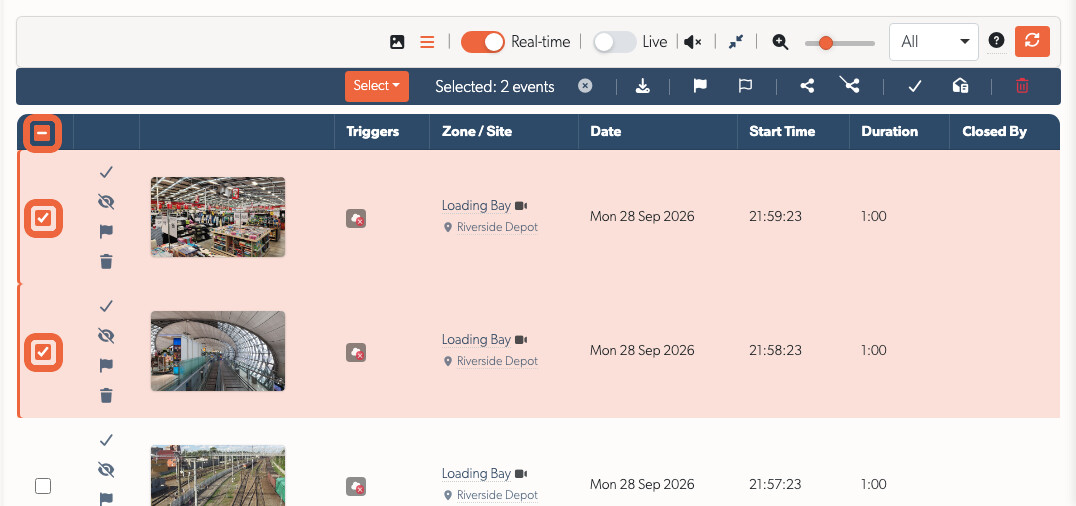
The action bar shows how many events are selected. Use it to flag, share or download the selection, or clear it when you are done.
Review an Event
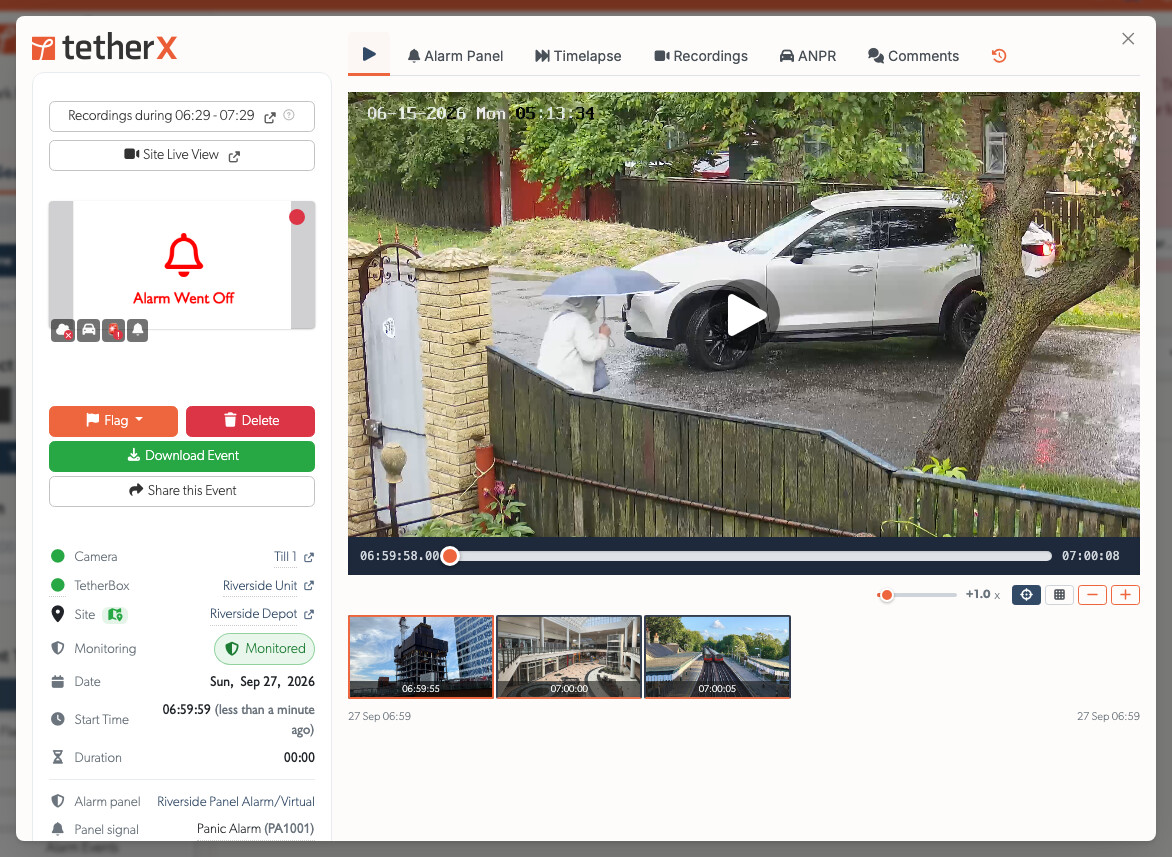
Click an event to open it. Use its Recordings tab to play the footage and the Timelapse tab for a fast overview. The Audit Log records who has opened or acted on the event. Previous and Next move through your filtered results without returning to the list.
Keep Important Evidence
Flag footage as soon as you know it matters. A flag makes an event easy to find with the Flagged filter and protects it from routine deletion as newer recordings need space.
- To flag one event, open it and choose Flag.
- To flag several, select them as described above, then choose Flag Selected in the action bar.

Share Evidence
Select one or more events, then choose Share Selected. Send an email invitation or copy a link for the recipient. A shared event gives them the evidence you chose without giving them access to the rest of your TetherX account.

Choose Unshare Selected when the recipient no longer needs access. For a person who needs ongoing access, create a user account with the right site or zone permissions and an expiry date instead.
Tip: Every video clip is checksummed. For a large or forensic evidence request, contact us about the extraction service and video checksums.
Download Footage
Use a download when the recipient needs a file, rather than a link they can view in the browser.
When the TetherBox Has Cloud Backup
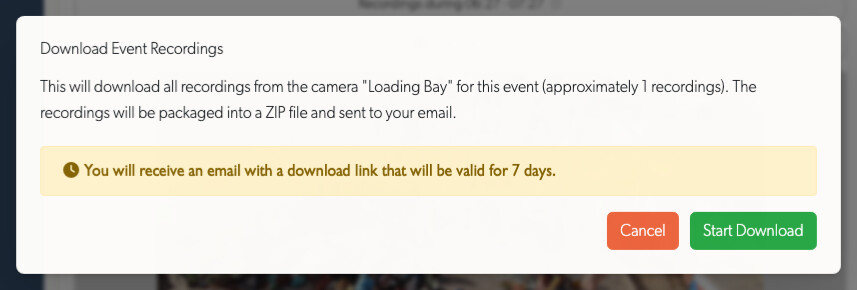
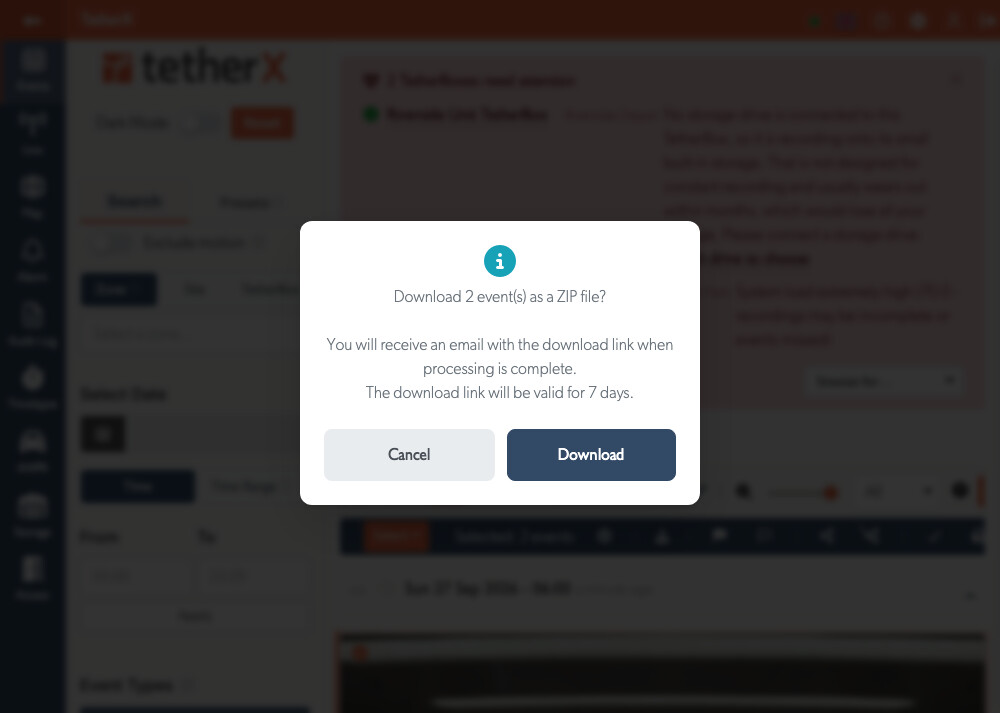
With cloud backup on the TetherBox, Download Event exports every recording in one event. Select several events and choose Download Selected to export them together. TetherX prepares a ZIP file and emails a download link, which expires after 7 days.
When There Is No Cloud Backup
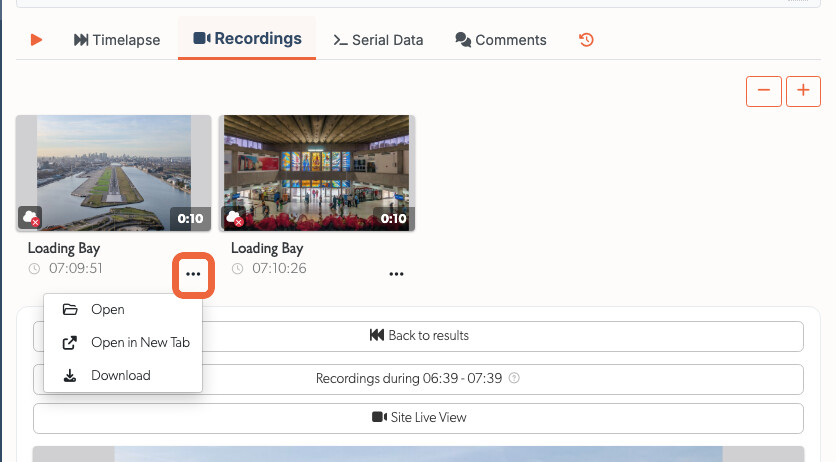
Without cloud backup, a whole-event or multi-event ZIP is not available. You can still open the event, select Recordings, open a recording's More options menu and choose Download to save that individual clip.
Sharing is usually quicker for a recipient who only needs to review the footage. Downloads also need the relevant download permission and an online TetherBox.
Standard users can download up to 15 events at once. Admins and integrators can download up to 100. See User Types for the differences between roles.
On a Phone
The TetherX app carries the same event list and filters in a layout sized for the screen in your hand. Use the view controls to make thumbnails larger or show two columns on a phone.
Related Articles
- Definitions - Event types and terminology
- Events View Menu - Display, real-time and state controls
- Monitoring Station Operator Guide - Working a control room queue
- Local Streaming - View footage directly from your TetherBox
- Native Apps - Use TetherX on iPhone or Android
- Notifications - Configure event alerts
Referenced in:
- Alarm Signal Receiving
- ANPR Whitelist with IP Relay
- Camera Notification Settings
- Cloud Backup Setup
- How to Enable ONVIF
- Related Zones
- Setting Up ANPR Cameras
- MicroChip
- Local Streaming
- Natural Language Search
- Timelapse
- Video Checksum & Evidence Authenticity
- Audit Log
- Definitions
- Frequently Asked Questions
- Getting Started with TetherX
- Questions to Ask Your Security System Supplier
- TetherX for Self Storage
- Time-Limited User Access
- Timelines
- User Guide
- User Permissions
- User Types
- Control Room Software Integration
- HikCentral Integration
- Immix Integration
- Lumana Integration
- Patriot Systems Integration
- Talkdown (Push to Talk)
- TetherBox
- TetherBox States
- TetherX AI