

Table of Contents
TetherBox Troubleshooting
Open Admin → TetherBoxes, then open the affected unit. Start with the Health badge: it collects the active CPU, memory, temperature, drive, network and device warnings in one place.
| What you see | What to do |
|---|---|
| TetherBox is offline | Follow TetherBox Went Offline for power and network checks. |
| Drive Health warning or error | Check the Storage tab and drive-and-stress-test-failures. |
| High CPU, load, IO wait or temperature | Check performance-and-temperature. |
| Latency, packet loss or interface error | Check network-connection. |
| A camera is offline or has recording problems | Follow Camera Troubleshooting. |
| Stuck at Starting, Updating or Restarting | Follow TetherBox States. |
Enable the Health Report for a regular summary of TetherBox and camera issues in your notification settings.
Tip: Use the Health Report to identify recurring drive, network or reboot problems before they interrupt recording.
Read the Status Page

| Indicator | Meaning |
|---|---|
| Online status | Connection to TetherX. Open the badge for details. |
| Health | All current system, storage, network and connected-device warnings. |
| Drive health | SMART errors, write failures, drive age and probe results. |
| Latency/loss | Round-trip time and packet loss to TetherX. |
| Local capacity | Estimated recording days before the oldest footage is overwritten. |
| Cloud backup | Backup and synchronisation health. |
Red needs prompt attention. Yellow indicates a condition to investigate before it affects recording. Custom or repurposed hardware should first be checked against Hardware Specifications for CPU, RAM, cooling and storage suitability.
Warning: A custom or repurposed host can pass a basic check yet still be undersized for its camera count. Confirm CPU, RAM, cooling and storage before treating the issue as a software fault.
Drive and Stress-Test Failures
Drive Health reports the immediate condition of recording storage. A SMART error, failed probe, I/O error or ejected drive means recordings may be at risk. Open the Storage tab for drive details and logs, check the cable or enclosure, then replace unreliable storage. See Storage and Storage Hardware Recommendations.
The stress test runs CPU, memory and storage together for about five minutes. A failure usually points to a hardware problem, not camera load:
- Re-run an interrupted test from the Settings tab.
- Read the first line of Error Details to identify CPU, memory or I/O.
- Test or replace faulty RAM, power supply, drive, cable or enclosure.
- Check cooling and reset aggressive BIOS settings on custom hardware.
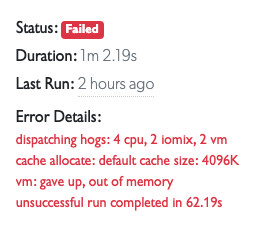
A passing test shows that the hardware is stable under load. It does not show that the TetherBox has enough capacity for its cameras, which is a separate sizing question in CPU Recommendations.
Performance and Temperature
| Metric | Normal | Investigate | Critical |
|---|---|---|---|
| CPU or memory | Under 80% | 80-90% | Above 90% |
| Load | Under 2.3 | 2.3-3.5 | Above 3.5 |
| IO wait | Under 15% | 15-20% | Above 20% |
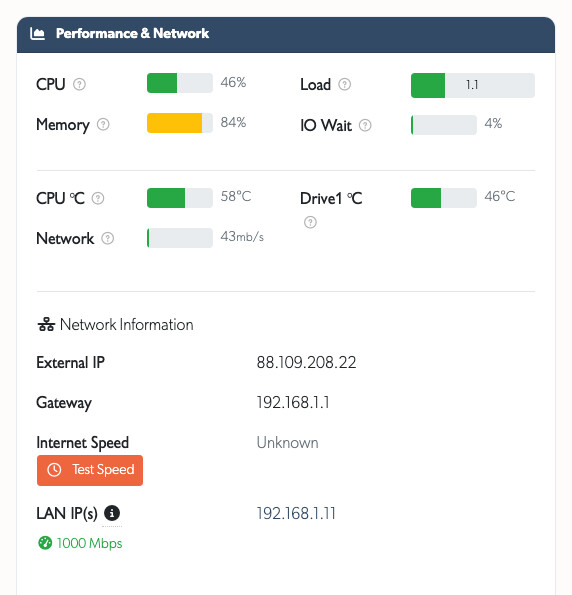
High CPU or load usually means too many cameras, unnecessarily high stream resolution or bitrate, or AI running without suitable hardware. Compare the host with CPU Recommendations and Hardware Specifications, then reduce stream demand or add capacity.
IO wait and drive load mean the processor is waiting for storage. Check drive health, free capacity, write speed, cabling and the enclosure. Avoid SD cards, USB sticks, SMR drives and low-quality USB adapters for continuous recording. High-camera-count sites need suitable NVMe or RAID storage. See Storage Hardware Recommendations.
Overheating reduces performance and can cause recording gaps or stress-test failures. Improve airflow, remove dust, keep the unit away from direct heat and ensure cooling matches the workload. Raspberry Pi 5 uses the official 27 W USB-C supply. If CPU temperature rises steadily under normal demand, fit active cooling or use a more capable host.
Warning: Sustained CPU, memory, IO-wait or temperature alerts can create recording gaps and delayed uploads. Investigate yellow and red health warnings promptly.
Network Connection
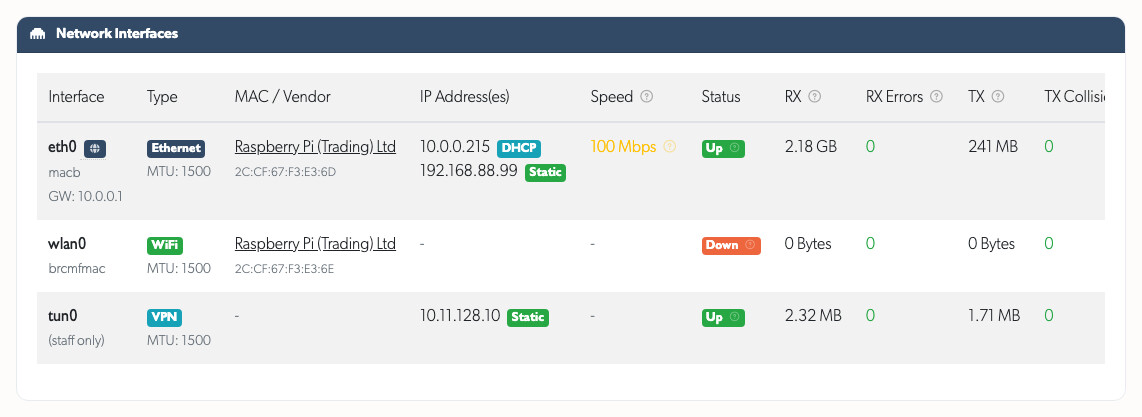
The Latency/Loss badge measures the route between the TetherBox and TetherX. Any packet loss is worth investigating. Use the Network tab to check interface speed, duplex, link state and error counters.
- Replace the patch lead and test another switch port if an interface reports Bad Cable or Half Duplex.
- Resolve packet loss, high latency or a slow link before diagnosing recording gaps as a software issue.
- Gigabit networking is recommended for sites with more than five cameras.
Collect Information for Support
If the status page does not identify the fault:
- Check the Reboots, Connections, Updates and USB tabs.
- Record the TetherBox serial number, error messages and unusual readings.
- Send TetherX support screenshots of the relevant status and detail panels.
Related Articles
- TetherBox Went Offline - power and Internet diagnosis
- Storage Hardware Recommendations - reliable recording drives and enclosures
- Camera Troubleshooting - camera and stream faults
- TetherBox States - expected state changes and recovery
- Support - contact TetherX
Referenced in:
- Camera Troubleshooting
- Local Streaming
- Changing DNS Settings on Your Device
- Health Dashboard
- Getting Started for Integrators
- Troubleshooting Kit
- CPU Recommendations
- Connecting your TetherBox to the Internet
- Emergency Console Login
- How TetherBox Detects Devices
- Power Recovery & BIOS Settings
- Remote Power Management
- Setting a Static IP Address on your TetherBox
- Storage Hardware Recommendations
- TetherBox