

Table of Contents
Monitored Hours
Monitored Hours decide when a site counts as monitored. Outside those hours, cameras keep recording and events still appear in TetherX.
Most sites are watched when nobody is there: overnight, at weekends or outside trading hours. For example, a yard watched from 18:00 to 09:00 on weekdays and all weekend needs separate rules for weeknights, Friday evening and the weekend.
A detection has two possible destinations, and this article names both throughout:
- it reaches a TetherX operator. TetherX is an alarm receiving centre in its own right, and its operators are the monitoring;
- it is forwarded to your external control room, where the site is set up for it. This is the optional integration for a customer who already works with a monitoring provider, such as Patriot, Immix, HikCentral or Manitou.
The second is an addition rather than a requirement. See Professional Monitoring.
The hours gate both destinations. Inside them a detection reaches a TetherX operator, and your external control room where the site is set up to forward. Outside them nobody acts on it: the detection is not in an operator's queue and nothing is forwarded. Your cameras keep recording throughout and the event is still there for you to review, so hours set too narrowly cost you the response rather than the footage. On a site nobody monitors, the hours decide nothing at all, and the panel at the top says so.
These hours only apply while the site is armed. Arming is the first question and the schedule is the second: a disarmed site is unmonitored at every hour of the week, whatever the pattern below says. See Arming sites and cameras for where the arming control is, and for the states it reports.
Warning: Disarming a site "for the weekend" switches monitoring off entirely for that period. It does not narrow them to the weekend pattern. Nothing reaches a TetherX operator and nothing is forwarded to your external control room until the site is armed again.
Open a site, then select Monitored Hours.
What is happening right now
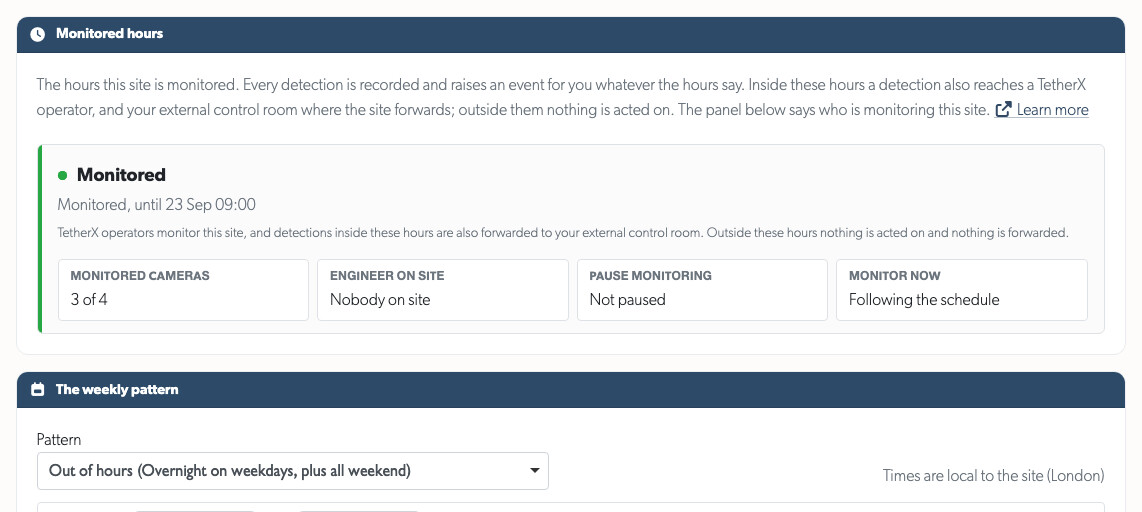
The panel at the top tells you whether the site is being watched now and, if not, why.
- Monitored - the site is inside its hours, with the time monitoring ends today.
- Not monitored - gives the reason, such as weekly hours, a date, a pause, an engineer on site or the site being disarmed, and says when monitoring resumes.
- No professional monitoring - nobody is monitoring this site: nothing reaches a TetherX operator and nothing is forwarded to an external control room either.
Under the state, the panel names the destinations. A site TetherX operators monitor with no forwarding set up says so: inside the hours a detection reaches an operator, outside them nothing is acted on. A site that also forwards to your external control room says that instead, and the same hours gate both.
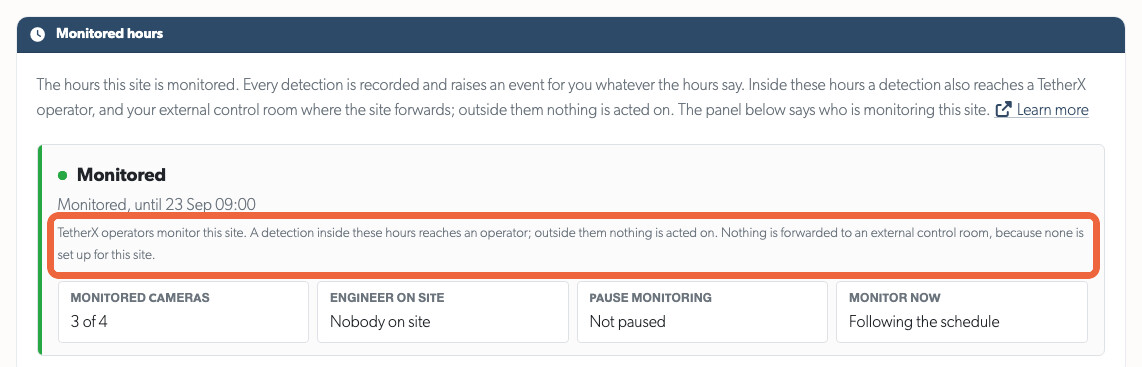
Below this are the details that can change the state: covered cameras, engineer visits and paused monitoring.
The weekly pattern
Set hours as rules in the site's local time, for example, "18:00 until 09:00, Monday to Friday". One rule can cross midnight.
That local time comes from the site's own Time Zone setting, on the details card of the site's page, and the line above the rules names the zone in use. Changing it moves the hours rather than converting them: a rule of "18:00 until 09:00" still reads 18:00 until 09:00 afterwards and now falls at a different moment. See Timezones.
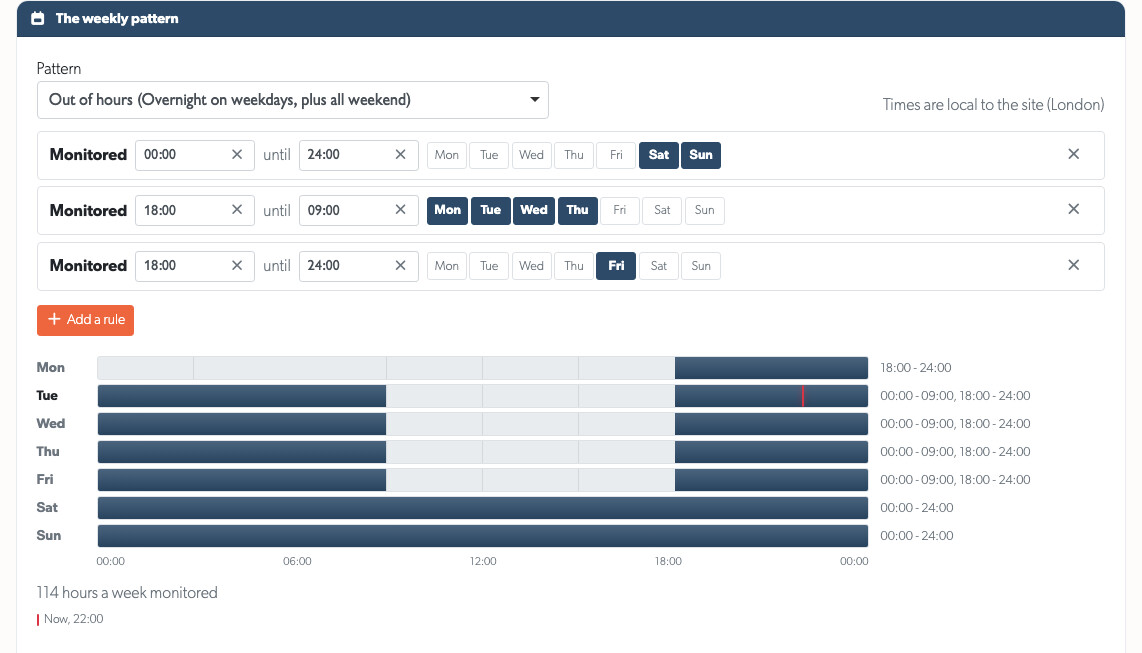
- Start from a pattern (Always monitored, Out of hours, Nights only, Weeknights only, Weekends only) and adjust it, or write your own rules. The rules are what is saved, not the pattern name: the picker reads the saved rules back afterwards and names whichever pattern they match, or Custom where they match none.
- The bar under each day shows the hours you have set. Drag across it to add a rule, or select it to add a rule for that day and enter the times. Dragging steps in 15-minute intervals; a time you type can be any minute.
- A rule that runs to the end of the day ends at 24:00, so all day reads "00:00 until 24:00". Midnight is the start of a day, and a rule ending at 00:00 would be a rule of no length.
- Times can be typed however you write them:
9,930,9:30,0930and09:30all mean half past nine, and24:00means the end of the day. Anything that is not a time leaves the time already in the field alone. - The marker on today's bar is the site's current local time, so you can see at a glance whether now falls inside the hours.
- Hours a week shows the total monitored time, so you can quickly check that the pattern is right.
Tip: A rule that covers no camera is refused rather than saved. Hours that hold every detection back and say nothing about it are the exact problem this screen exists to prevent.
Which cameras are covered
Under the pattern is the site's camera list. Turn the Monitored switch on for each camera whose detections should reach an operator. A camera with that switch off is never monitored, whatever the hours say. For example, you may leave a plant-room camera off if it creates routine activity overnight.
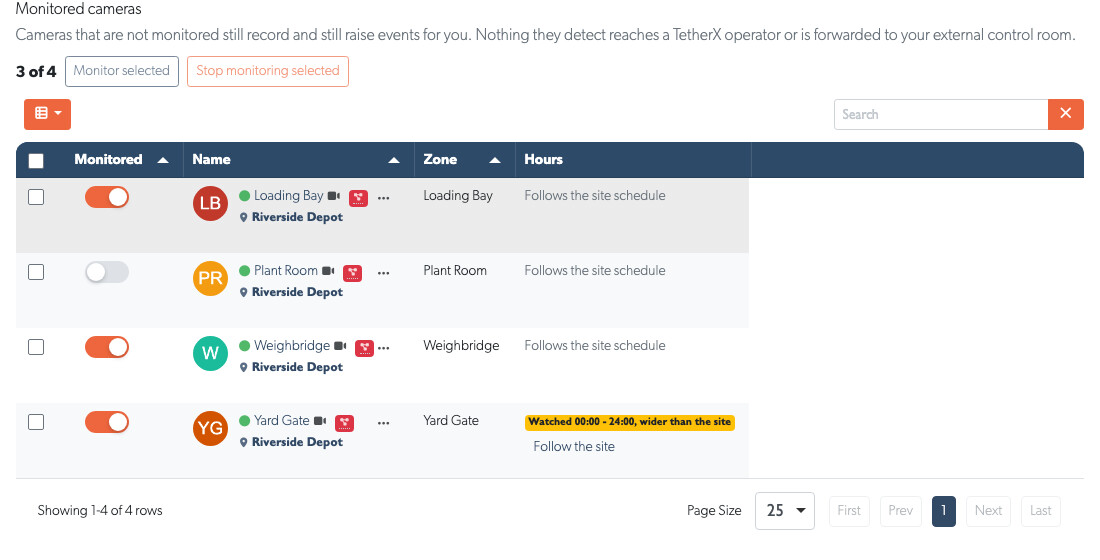
The switch saves as soon as you move it, and the count above the table is how many of the site's cameras are monitored. On a site with a long camera list, tick the rows you want with the row checkboxes and use Monitor selected or Stop monitoring selected to set them together. Sorting by the Monitored column groups the ones that are on.
Warning: A camera is not monitored until its switch is on, and that includes a camera added to the site later. Coverage is a list rather than "all except", so a camera nobody has switched on records and raises events as normal and reaches no operator. After adding a camera, come back to this list and switch it on if an operator should see what it detects.
A camera can have its own hours, set on the camera itself: open the camera, select Schedule, then Monitored hours. These override the site pattern and can cover more time, such as a high-risk entrance watched around the clock at a site otherwise monitored only overnight.
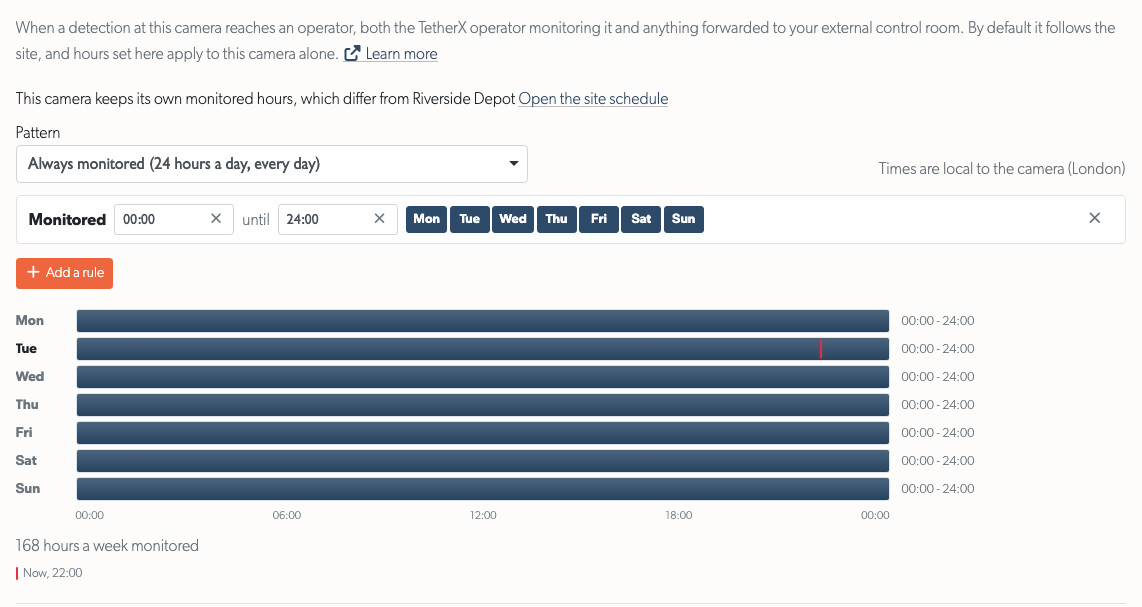
Warning: That tab opens on the Recording schedule, which is a different thing: it decides when the camera records and when it can be watched live, not when a detection at it is acted on. Select Monitored hours before editing, or you will change the recording instead.
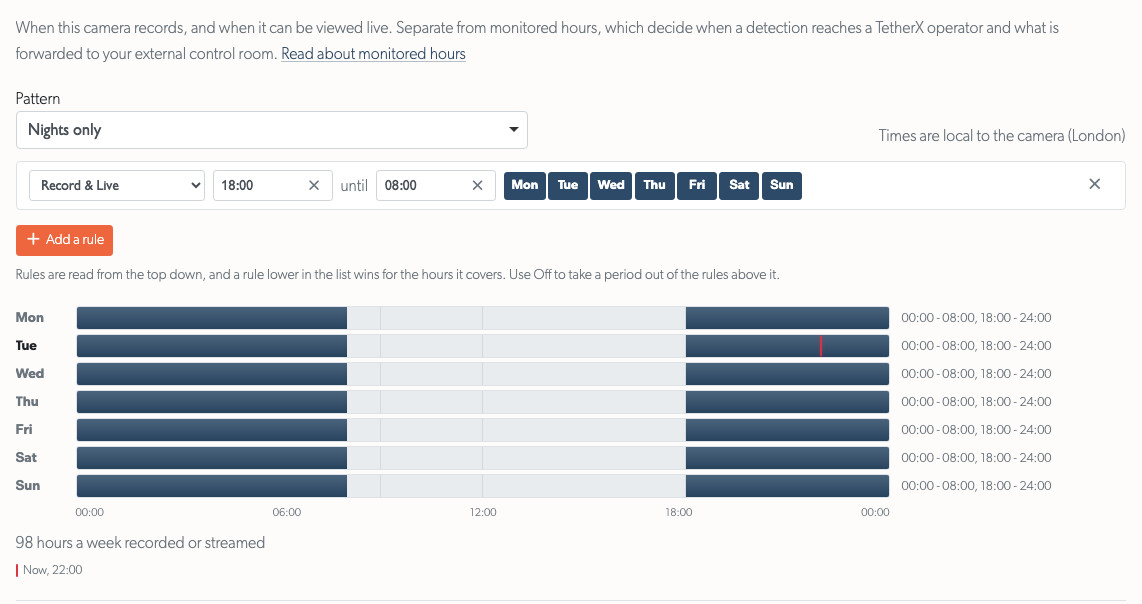
Both panes use the same editor, so a rule reads the same way on either: "18:00 until 08:00", drawn as the hours it covers on each day. A recording rule additionally carries what it does, such as Record & Live or Live only. See Camera Recording Schedule for what each of those does and how several rules combine.
When a camera's hours differ from the site's, the Hours column shows the hours that apply. Check Watched 00:00 - 24:00, wider than the site carefully: that camera can call an operator out while the rest of the site is not monitored. Select Follow the site to remove the camera's own hours and use the site pattern again.
Dates that replace the pattern
Use a date for a bank holiday, shutdown week or late trading night instead of changing the weekly pattern. A date overrides the pattern on the days it covers.
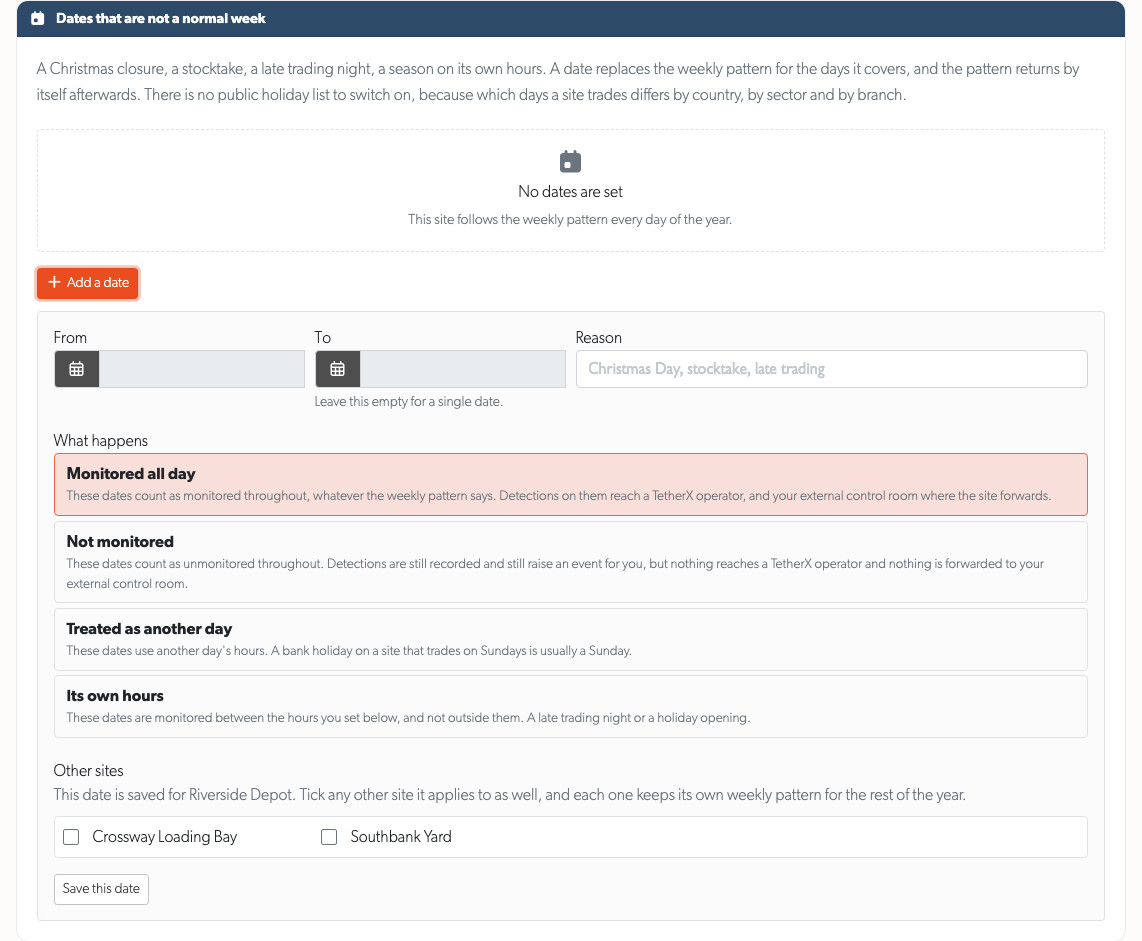
Each date has an effect:
- Monitored all day - a shutdown week, when the premises are empty and should be watched throughout.
- Not monitored at all - an open day, a works weekend, anything where activity is expected.
- Its own hours - one pair of times covering every day the date spans.
- Treated as another day - use the hours from another day, such as Sunday hours on a bank holiday Monday.
Set Repeats yearly for a date that falls on the same day every year, such as Christmas Day. Leave the end date empty for a single day.
One date, several sites
A closure often covers more than one site. Under Other sites, tick each additional site and add the date to all of them at once. Each site keeps its own weekly pattern for the rest of the year.
A date added to several sites is marked also on other sites. Deleting it removes it from every selected site.
Only sites you can reach are listed, and only those are written to.
Pausing monitoring for a while
Two controls at the bottom of the tab temporarily suspend monitoring without changing the schedule. Choose an end time when you start either one, so monitoring resumes automatically.
- Engineer on site - for planned work that would otherwise reach an operator. Record what is being worked on and for how long.
- Pause monitoring - for a late delivery or a false alarm that cannot be stopped at the camera. Choose a length, or pause until monitoring next ends or resumes.
To go the other way and have a site watched outside its hours for a while, use Monitor now on the arming control.
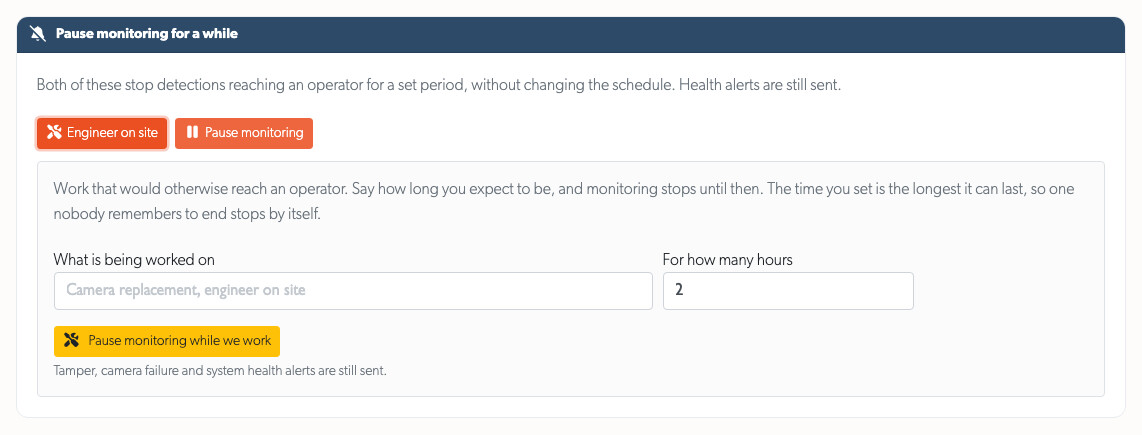
The panel at the top shows what is active, who started it and when it ends. You can end either one early.
A pause and an engineer visit hold back detections, which is what the hours are about in the first place. Faults and emergencies are not held back by either, nor by the weekly pattern or a date: tamper, camera failure, video loss, power and battery faults, communication loss and the other health signals go through whatever the hours say, and so do fire, flood, gas, panic, hold-up, duress and the environmental alarms, because none of those is more ordinary in the afternoon than at two in the morning.
Warning: Arming is the one thing that overrides all of that. A disarmed site signals nothing at all, health and life-safety signals included, because arming is read before the bypass. Disarm a site to stop the noise from an engineer's visit and you have switched off its fire and tamper reporting for the same period. Use Engineer on site for that instead.
Monitoring now, for a while
Monitor now is the mirror of a pause. It widens the schedule for a set period so an armed site is watched straight away, without editing the weekly pattern: use it for a late shift, a delivery arriving after the yard has closed, or a site somebody wants watched for the rest of the afternoon.
It is on the arming control rather than in this tab. Open Sites, or the site's own page, select the arming button and choose a length: 1, 4, 8 or 24 hours, or until the schedule takes over by itself. The button then reads Monitoring now, its menu says when the window ends, and Go back to the schedule ends it early. A window nobody ends stops by itself at the time set, the same way a pause does.
The same entry is on a camera's arming control, and it widens the site's schedule from there, because that is the schedule holding the camera back.
Monitor now is read before a date and before the camera coverage list, so it covers a day the schedule closed for a shutdown and a camera the hours were never drawn around. It is read after a pause, a maintenance window and arming, which is why it is not offered under any of them.
Warning: Monitor now is not offered while monitoring is paused or an engineer is on site, because it would change nothing: end the pause or the maintenance window instead. On a disarmed site it changes nothing either, so the menu offers Arm and monitor now there, which does both in one step rather than leaving the site armed and watched by nobody in between.
What an operator sees
On a professionally monitored site, an operator sees only events that happened inside the site's monitored hours. An event raised outside them is not in their queue, and cannot be opened from an old link either. That is true of a TetherX operator and of an operator working your external control room's queue alike, because one rule decides both.
A site nobody monitors is the exception, and it is not really one: no hours are holding anything back there, so the question is never asked and an operator who can reach the site sees its events as any other user would.
Each event records whether the site was monitored when it happened. That decision does not change later: changing the hours does not reveal earlier events that were withheld, or hide events an operator has already handled. A schedule corrected on Tuesday applies to events from Tuesday onwards, while the operator's history stays accurate.
If an event starts outside monitored hours but continues when monitoring begins, it counts as monitored from that point: it enters an operator's queue then, and where the site forwards, the live incident goes to your external control room at the same moment.
This applies only to operator accounts. Customer users continue to see every event from their cameras, whether or not the site was monitored at the time.
Which events reached a control room
Your own events list shows the monitored and the unmonitored side by side, so it marks the difference. An event that reached an operator carries a badge in the top-left corner of its card, and resting the pointer on that badge names where the detection went:
- Sent to a TetherX operator - the site is monitored by our operators and this detection reached one.
- Forwarded to your external control room - the site forwards to your own monitoring provider and this detection was sent there.
- Both sentences together, where the site does both.
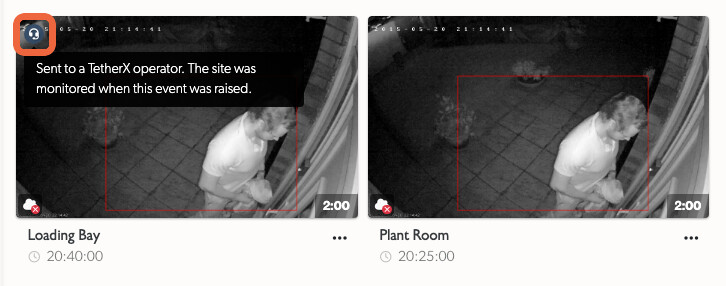
A card with no badge is a detection that reached no operator: outside the hours, on a camera the coverage list does not cover, inside a pause or an engineer visit, or on a disarmed site. It is still recorded and still yours to review.
The badge reads the decision recorded on the event at the time, the same decision the section above describes, so editing the schedule afterwards neither adds it to old events nor takes it off them. An event that starts outside the hours and runs into them gains the badge when the hours begin.
It appears on every account except an operator's, because every other account sees both kinds of event side by side. An operator's queue holds monitored events only, so a badge on every card there would say nothing and none is shown.
Check whether scheduling blocked detections
Use the panel below the date list to check whether a scheduling rule is excluding more than you meant. It is a seven-day summary, not a list of individual detections. TetherX records a small counter whenever a detection falls outside the schedule, then shows those already-recorded totals grouped by reason.
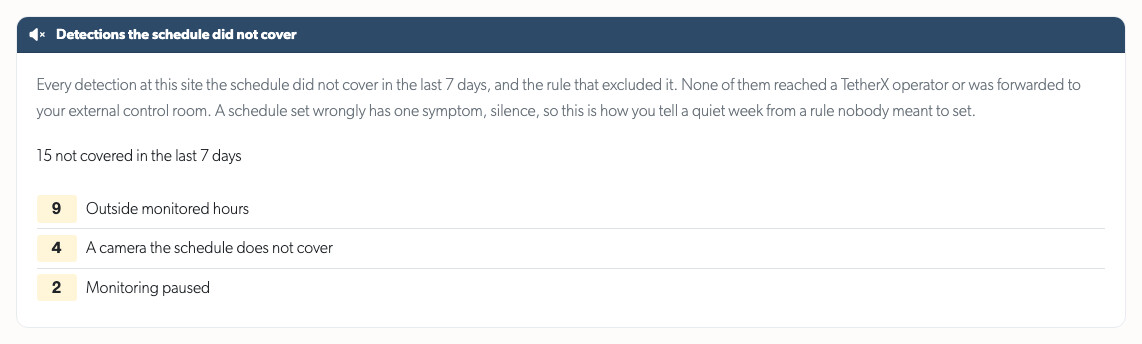
Each row names the rule that excluded the detections it counts:
| Row | What it means |
|---|---|
| Outside monitored hours | The weekly pattern did not cover the time it happened. |
| A date in the schedule | A date replaced the pattern that day and did not cover it. |
| A maintenance window | An engineer visit was running. |
| Monitoring paused | Somebody had paused monitoring. |
| A camera the schedule does not cover | The camera is not ticked on the site's list. |
| The site is disarmed | The site was disarmed, so it was unmonitored whatever the pattern said. |
| Footage refused | The unit and the cloud disagreed about the schedule. Raise this with your integrator. |
A week of The site is disarmed rows means exactly that: the site was switched off for monitoring the whole time, not narrowed to a pattern. Arm it, or expect nothing to reach an operator.
Each count is a detection that fell outside the schedule: it reached no operator, it is not in an operator's queue, and it was not forwarded to your external control room. It is still in TetherX for you to review.
Use the counts to spot an unexpected rule, for example, many detections excluded while a pause was active. Then use the Audit Log to see who changed the relevant hours, camera coverage, arming or temporary suppression.
Related
- Professional Monitoring - what a monitored site gets, and how to arrange it
- Camera Recording Schedule - the other schedule on a camera: when it records and when it can be watched
- Control Room Software Integration - the external platforms a site can forward to as well
- Arming sites and cameras - the control these hours sit behind, and the states it reports
- Timezones - the site's local time, which the hours are written in
- Audit Log - who changed the schedule, and when
Referenced in: