

Table of Contents
Patriot Systems Integration
Patriot is alarm monitoring automation software used by Alarm Receiving Centres, including Intelligent Monitoring Solutions (IMS). TetherX sends alarms to a Patriot control room over Patriot's own interface rather than by email, so every signal is confirmed as it is recorded, arrives with the camera identified, and carries the verification image with it.
This page covers setting a site up. The control room administrator's own job, what Patriot's interface can and cannot carry, and what to check when alarms are not arriving, are all in Patriot Systems Reference.
What Your Operator Sees
Once a site is reporting, every alarm carries a Control Room panel showing what the control room did with it: the Patriot ticket number, the operator who took it, how long they took, how they completed it and why, and which of your own operator's actions reached Patriot.
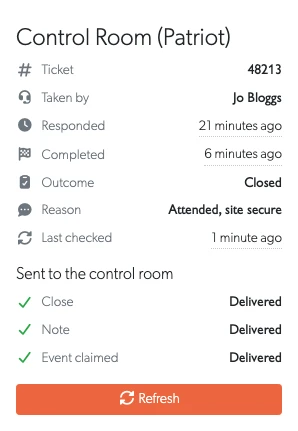
Alarms themselves arrive in Patriot with the camera identified and the verification image inside the signal:
| Benefit | Description |
|---|---|
| Confirmed delivery | Patriot confirms an alarm once it is recorded in its database, rather than simply accepting it. If it cannot be recorded, TetherX retries and reports the failure instead of assuming it arrived. |
| Named cameras | Each camera reports under its own number, so the operator sees which camera fired rather than a site-wide alarm. |
| Typed events | Person, vehicle, line crossing, loitering, tamper, camera offline and the rest arrive as distinct Patriot event types, so your control room can give each one its own action plan. |
| Verification image included | The snapshot travels inside the signal, so the operator sees it in Patriot without leaving the alarm. |
| Site position | The site's coordinates go with each alarm and appear on the account's Map tab. |
| Connection heartbeat | A control room account sends a signal every minute to an account the control room nominates, so they know at once if alarms stop reaching them. Patriot itself has no heartbeat: it is an ordinary signal to an account they watch, so ask whether they want one and where to send it. |
| No port forwarding | As with every TetherX integration, nothing is opened on the customer's network. |
Alarms, verification images, camera and device failures, the site's position, the heartbeat and the site's armed state are sent today. Camera names, maintenance windows and reflecting an operator's actions back to the control room are built and waiting on rights your control room grants. Patriot Systems Reference lists all of it, including what Patriot's interface refuses outright.
Before You Start
Ask your Alarm Receiving Centre for:
- the ICA address, for example
https://ica.example.com - the username and password for the TetherX user
- each site's client number in Patriot, which includes the area and port, for example
0013BASE01 - whether they want a connection heartbeat, and if so which account number to send it to
And ask them to confirm all of the following. Each is a Patriot requirement, not a TetherX one.
- Internet Client Access with Extended Logins. The Patriot API is served by the control room's ICA host, and signal logging needs Extended Logins.
- A security group with the Log Signal right, and a user in that group created for TetherX. One user covers every site the control room monitors for you.
- That user assigned to each account TetherX will report against. Patriot refuses a signal for an account the user is not assigned to.
- The Standard Media Camera module, with the account's Camera Type set to Standard Media, if the operator is to see the verification image.
- An event type template covering the TetherX event numbers, so each alarm has a description and an action plan. The file and the steps are in the reference page.
Warning: The event type template matters more than it looks. A number the control room already uses for something else turns a video alarm into whatever that number already means, which has put a camera detection on an operator's screen as a fire signal. Ask them to check 9001 to 9049 before the first site goes live.
Choosing How a Site Signs In
Each site reports to Patriot in one of two ways. Ask your control room which one applies before you start.
| Connection | Use it when | What the site holds |
|---|---|---|
| Control room account | The control room issued one login for every site it monitors for you, and expects a heartbeat from the integration. IMS works this way. | The client number only. The login and the heartbeat are held once, on an operator account. |
| This site's own login | The control room issued a login for this site only. | The address, username, password and client number. No heartbeat is sent. |
With a control room account, the login is entered once and never touched again as you add customers. Each new site still needs two things of its own: its client number, which the control room issues per monitored account, and access to that site's cameras for the control room account, so it can carry the alarm and open what the alarm links to. One account can carry sites belonging to different customers.
Setting Up a Control Room Account
Skip this if each site has its own login.
A control room account is an Operator account that stands for the control room. It holds the Patriot login and sends the heartbeat, and the control room's staff can sign in with it to open what each alarm links to. Integrators and TetherX staff can set one up.
Create an Operator account for the control room, as described in User Permissions. See User Types for what an Operator can do.
Give it access to the cameras of each site the control room monitors, on the Permissions tab. A site can only report through an account that can reach it.
Open the account and select the Integrations tab, where the Control Room section sits.
Enter the Patriot login your control room gave you:
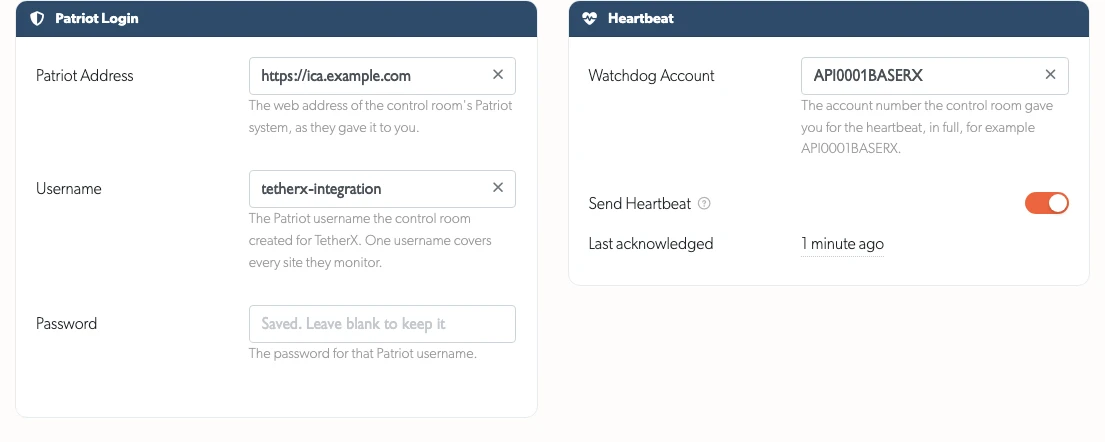
- Patriot Address: the ICA web address, for example
https://ica.example.com - Username and Password: the Patriot user created for TetherX
- Watchdog Account: the Patriot account number the control room wants the heartbeat sent to, in full. Leave the heartbeat off if they do not watch for one
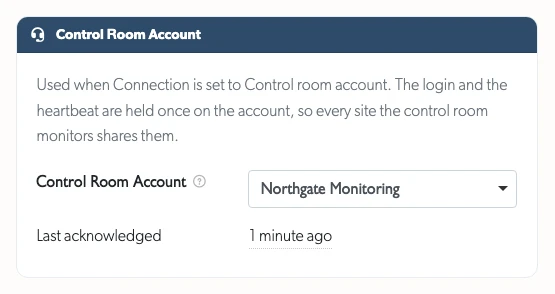
Switch Send Heartbeat on and select Update User. TetherX sends the first heartbeat within a minute, and Last acknowledged shows when the control room last confirmed one.

The password is never shown again once saved. Leave the field blank to keep it, or type a new one to replace it.
The Sites Reporting Through This Account list shows every site that uses the account:
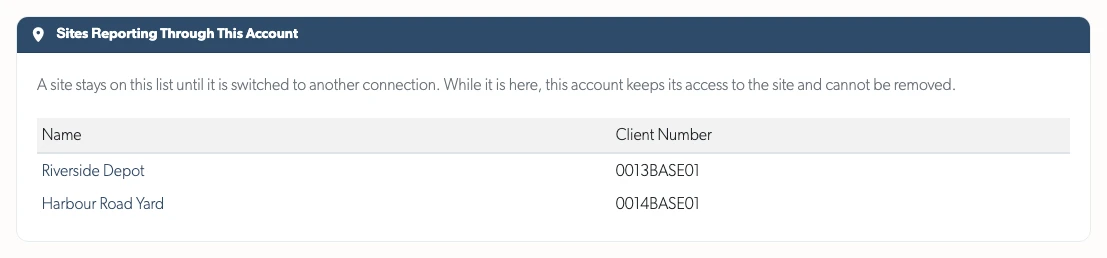
Warning: TetherX refuses to remove this account's access to a site on the list, deactivate the account, change its type or delete it. Switch those sites to another connection first, so no monitored site is left without a way to report.
Setting It Up on a Site
Select the Control Rooms tab, then Patriot Systems.
Choose the Connection and enter the site's details:
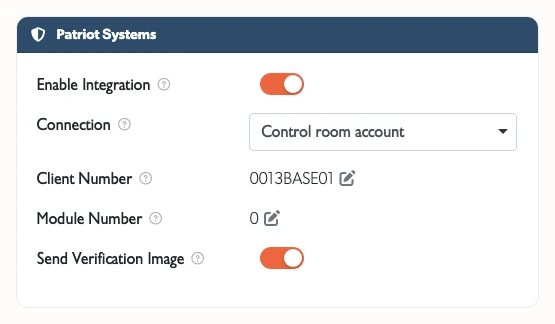
- Connection: Control room account or This site's own login
- Client Number: this site's Patriot account number, including area and port
- Module Number: leave at 0 unless your control room asks otherwise
- Send Verification Image: leave on so the snapshot goes with each alarm
With a control room account, choose the account under Control Room Account. Only active Operator accounts holding a Patriot login that can already reach this site are listed.
With this site's own login, enter it under This Site's Own Login:
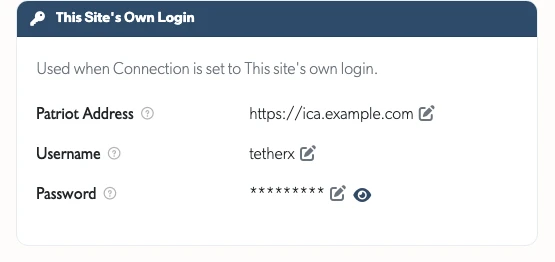
- Patriot Address: the ICA web address
- Username and Password: the Patriot user created for this site
Switch Enable Integration on. TetherX asks for the details the chosen connection needs first, so that a site cannot be left switched on with nothing to report to.

Once enabled, TetherX AI detections, camera analytics and VMD Events for this site are logged in Patriot as they happen, along with device and camera communication failures.
Camera Numbers
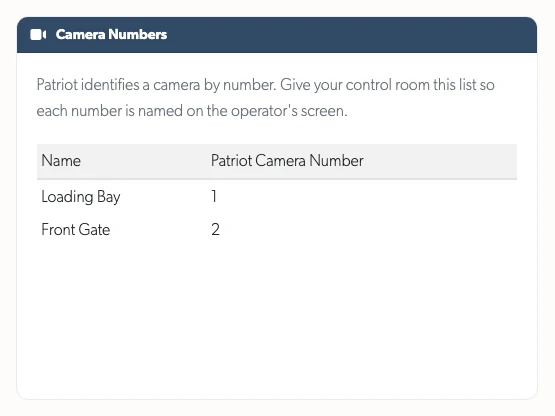
Patriot identifies a camera by number within the account. TetherX assigns each camera a number the first time it raises an alarm, and keeps it for the life of the camera.
The Camera Numbers list on the Patriot Systems tab shows the number for each camera at the site. Send that list to your control room so they can name each zone in Patriot. The operator then sees "Person Detected - Loading Bay" rather than a bare number.
Monitored by IMS?
Intelligent Monitoring Solutions monitor on Patriot and issue one login for the whole integration, so their sites use a control room account. Their onboarding, the details they provide and the format of their client numbers are in Intelligent Monitoring Solutions (IMS).
If Something Is Not Working
The checks are in the reference page, starting with the four that account for most of it: the site is armed, the client number includes the area and port, the TetherX user is assigned to that account in Patriot, and the heartbeat is being acknowledged.
Related Articles
- Patriot Systems Reference - Event types, limitations, planned features and troubleshooting
- Control Room Software Integration - Immix, CONXTD and HikCentral
- User Types - What an Operator account can do
- User Permissions - Creating an account and giving it access to cameras
- Monitoring Station Operator Guide - Working alarms in the operator console
- Monitored Hours - When a connected site's detections are actually sent
- Definitions - Event types and terminology
- Tunnelling to Network Devices - Remote access to on-site devices
Referenced in: