

Table of Contents
Immix Integration
TetherX reports alarms to Immix by email, with the verification frames attached, and hands your control room one live view URL per camera. Operators watch the video inside their own software, with no port forwarding and no VPN.
This uses Immix's own interfaces: their SMTP alarm receiver for the alarms and the frames, and the Generic Video Interface for live view.
For HikCentral, which receives a generic event rather than an email, see HikCentral Integration. For Patriot Systems and Manitou, which are integrated directly, see Patriot Systems Integration and Manitou Integration.
Setting Up a Site
Your control room configures their software to receive the alarms first, by setting up a line handler and giving you the address to send to. Once that is done:
-
Open the site you want to configure
Select the Immix tab
Switch Enable Integration on and enter the details your control room provides
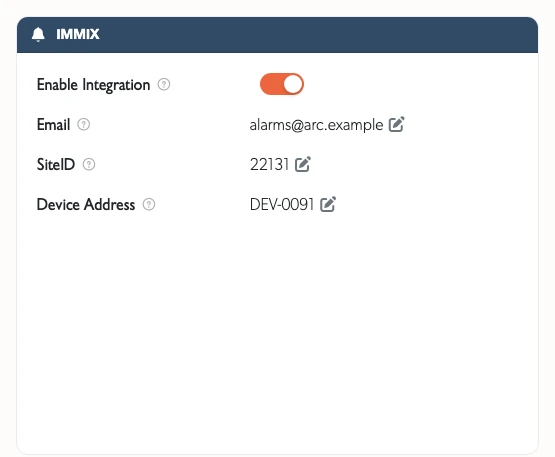
- Email: the control room's receiving address, which is how their receiver knows which site an alarm belongs to
- Mail Server: SMTP server hostname, if you are using your own rather than ours (in the Email Settings card beside it)
- Port: as specified by your control room, typically 25, 465 or 587
- Username/Password: SMTP credentials, if required



Each field saves as you finish editing it, so there is no Save button to press.
Once the site is set up, all TetherX AI detections (people, vehicles, animals, glass break, alarms, and more), camera analytics (object unattended, intrusion, line crossing), VMD Events and any alarm panel on the site report to the control room with pre and post capture snapshots attached.
What we send
Each alarm is one email. The body is the alarm itself, and the verification frames are attached to it.
The format is the one Immix publish, which their receiver decodes on its own. It is what every site sends, and it is what to ask for if your control room is setting up a new line handler.
<Alarm>
<VersionInfo>1</VersionInfo>
<Input1>7</Input1>
<EventType>PersonDetected</EventType>
<ExtraText>PersonDetected - Loading Bay - Riverside Depot</ExtraText>
<DateTime>2026-05-11T19:00:30Z</DateTime>
<Location>51.5072,-0.1276</Location>
<URL>https://app.tetherx.com/events/6aa1b2c3d4e5f60718293a4b</URL>
</Alarm>
What each part gives the operator:
| Element | What it carries |
|---|---|
Input1 |
The camera number, which is what your control room writes response instructions against. Numbers start at 1 within a site and never change once a camera has them. A site-wide alarm, such as a TetherBox going offline, carries no number |
EventType |
One of Immix's own event types, so their alarm response rules can route it by type |
ExtraText |
The TetherX event name in full, the camera, and the site. TetherX recognises far more detection types than Immix has event types, so this is where a flood and a gas leak are told apart |
DateTime |
When the detection happened, in UTC. Not when the email was sent |
Location |
The site's position, which Immix render as a map |
URL |
A link straight to the event in TetherX, for the operator to click while handling the alarm |
[!NOTE] TetherX sent a single
SiteID=…|EventType=CCTV|…line before September 2026, which was not a format Immix publish: a control room receiving it read it with a rule of their own, usually a Custom Regex device type. Every site now sends the format above. If your control room was set up against the old line, ask them to switch the line handler to the Immix alarm format, because a body their rule does not match still arrives and still opens as an alarm, but with no event type, so their alarm response rules will not run on it.
Adding Live Video
- Go to the Control Rooms page
- Copy the URL for each camera, or use Copy All to take the lot as a spreadsheet
- Add the URL to your Immix configuration
The URLs belong to the account that copied them and stop working if that account is removed, so we recommend creating a dedicated user for your control room.
Testing it
Immix run a public device test portal at testmydevice.immixprotect.com (opens in a new tab), which decodes an alarm exactly as their receiver does and shows what an operator would have seen. It needs no account. Sending one alarm there is the quickest way for a control room to confirm the format before the line handler goes live.
Related Articles
- Control Room Software Integration - How the platforms compare and what each gives you
- HikCentral Integration - Generic events sent straight to HikCentral Professional
- Patriot Systems Integration - Direct integration with Patriot
- Manitou Integration - SIA DC-09 to Manitou and other receivers
- CONXTD Integration - Alarm panel events reported to CONXTD
- Definitions - Event types and terminology
Referenced in: